Cloud-based business software that is simple, secure, and always available. A single, comprehensive platform that unites , warehouse management, customer management, and integrations empowering your business to move forward faster.
TOOLS
Be it 1 store or 500, we have the tools to manage your entire retail operation
Enhance your business operations with Erply's API. Streamline inventory management, customer data, product tracking, and campaign organization, all in one centralized platform. Stay efficient, organized, and ahead with everything seamlessly integrated into your Erply account.
Check out ERPLY APIMultiple Payment Options
We give you the freedom to select the payment provider that aligns best with your business needs. Whether you opt for Erply Payments or another top-tier provider, the decision is completely up to you.
View Payment IntegrationsUse your phone to run your Warehouse
Run your warehouse from your phone with our all-in-one app. Manage receiving, shipping, and packing seamlessly, ensuring error-free orders and happy customers with real-time PO updates.
View Delivery IntegrationsEASY SETUP
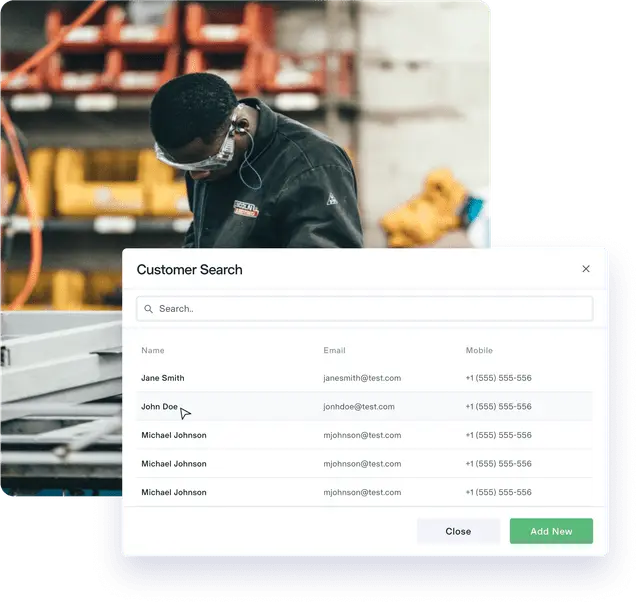
HASSLE-FREE CLOUD SOLUTION

GET STARTED
Unite Erply with Inventory.com and launch your e-commerce like a rocket! Turn your inventory into revenue in record time and cost.
One system manages both in-store and online selling!
Kickstart your success with a free Erply account setup. Dive in and see the difference!
Elevate Your Business: Seamlessly Link to Your Erply Account!
Unlock the power duo: Log into Erply and effortlessly sync with Inventory.com for a game-changing integration!
Manage in-store and online selling with one system!
Unite Erply with Inventory.com and launch your e-commerce like a rocket! Turn your inventory into revenue in record time and cost.
GET STARTED
Boost your sales with Erply POS, streamlining transactions and eliminating the hassle of paperwork and manual record-keeping.
Track your team's hours easily with Erply's Employee Timeclock. Simplify payroll, boost productivity, and ensure every minute counts.

Boost your traffic by letting your customers shop online and pick their items up at your store! Not only do they save on shipping, but they might also snag an extra deal or two when they swing by. It's a win-win for savings and sales!

With Erply, access detailed recent sales at your register for informed decisions and enhanced customer service. Quickly handle returns, reprint receipts, and gain insights from your last 100 transactions. Streamline operations across individual stores or entire chains, ensuring satisfied customers every time.
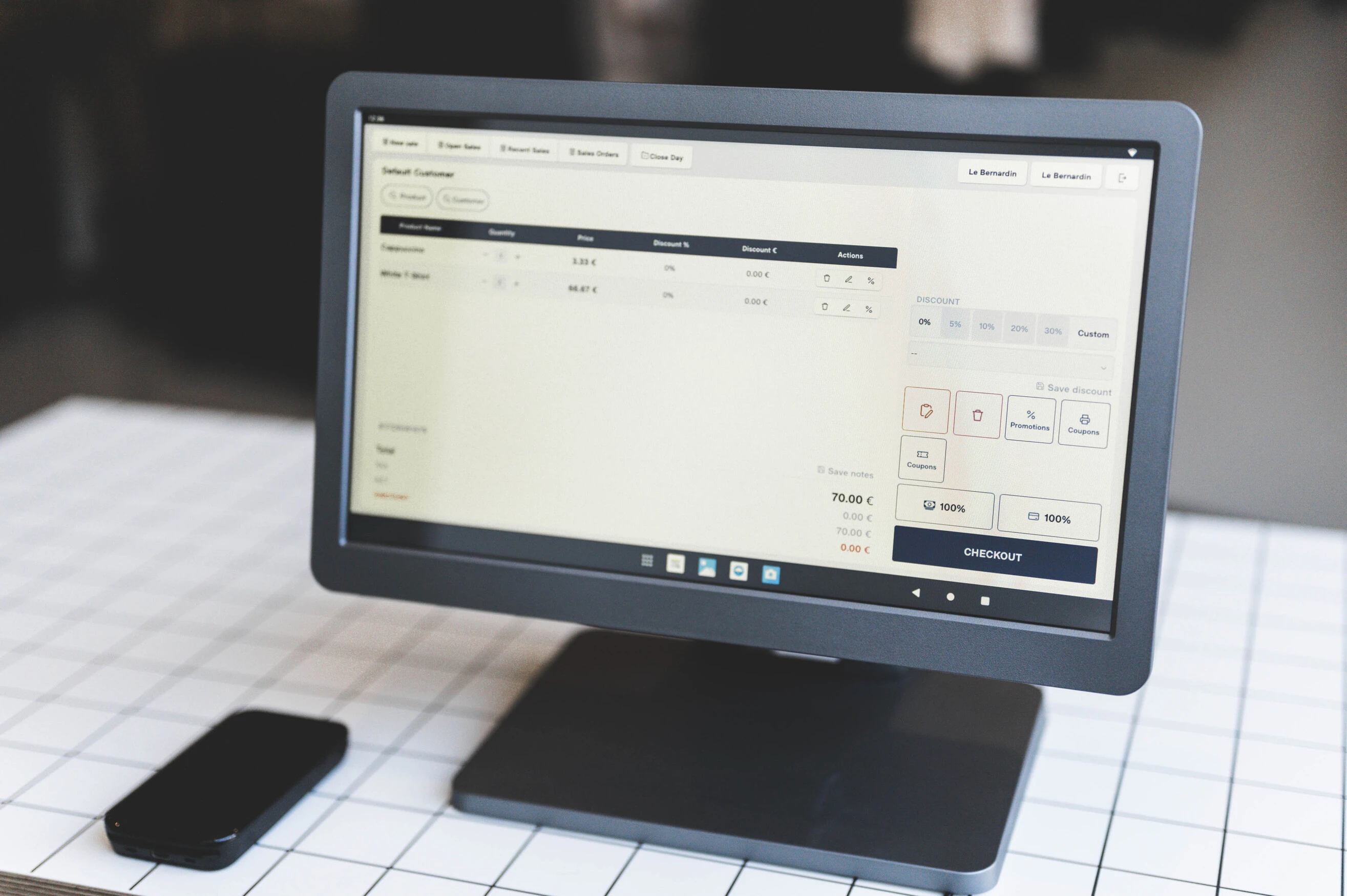
Easily track receipts, monitor your till, and get detailed transaction reports to safeguard against potential discrepancies. Set boundaries on cash differences and ensure accountability, minimizing risks of employee miscalculations or theft that could impact your bottom line.

Speed up checkouts and enhance customer service with Erply's Quick Select Keys. These programmable buttons allow cashiers to instantly access popular products or items without barcodes, displaying vital information and photos on the POS. Customize them for your inventory, easily adjusting for different store locations or seasonal bestsellers, ensuring swift and efficient transactions every time
GET STARTED
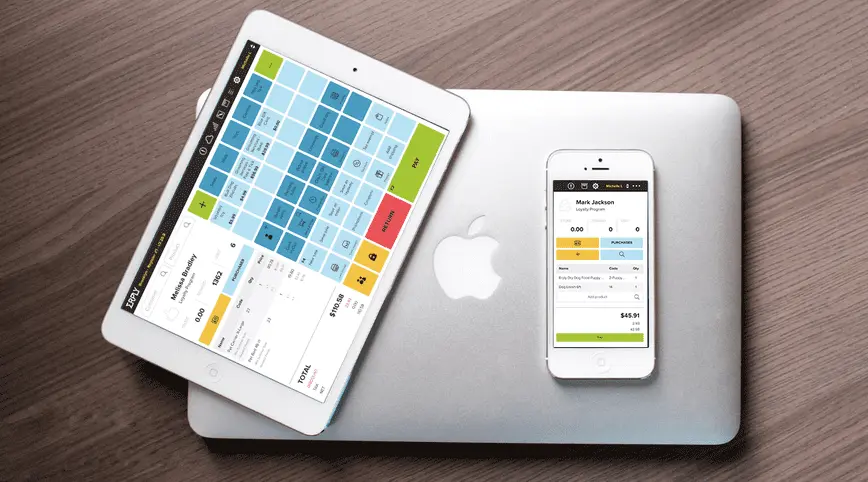
Energize Your Sales! With Erply retail POS software, streamline transactions and eliminate the hassle of paperwork and manual logs.

Remain unstoppable with Erply retail POS software! Sell confidently even offline, and delight customers with a hassle-free setup.

Skyrocket your growth effortlessly with Erply retail store POS software! Impress customers with swift, adaptable service they'll rave about.

Stay effortlessly on top with real-time stock insights! Order smart, delight retail customers, and nail that perfect inventory balance.
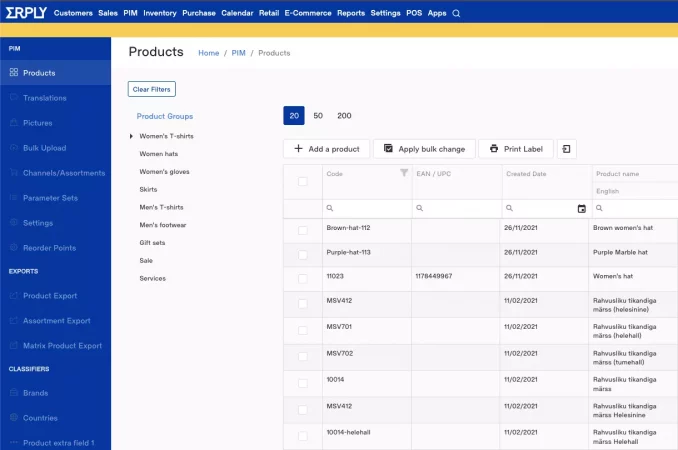
Discore crystal-clear insights on retail sales and trends. Know your customers, drive confident choices, and watch those profits soar!
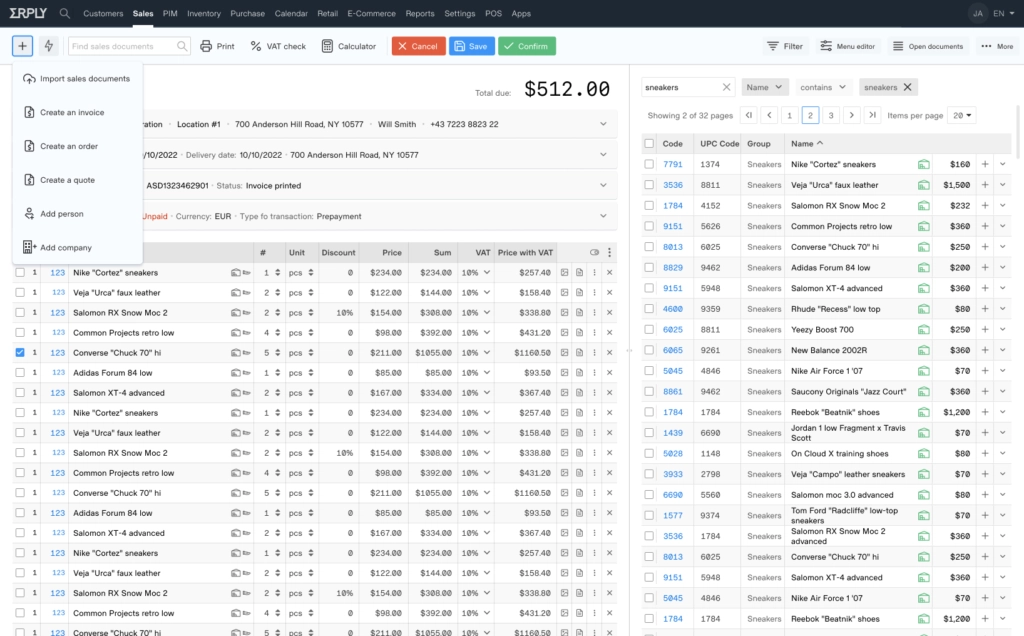
Capture your retail customer's preferences, purchases, and contacts in a snap. Craft personalized offers and turn casual shoppers into loyal fans.

Turbocharge your retail sales with precision automation. Delight customers with swift checkouts and enjoy smoother operations in your retail business every day.
AUTOMAT APP MAKER
Automat App Maker is a low-code platform integrated with ERPLY POS & Inventory. Create, customize, and automate applications effortlessly, boosting flexibility and efficiency.
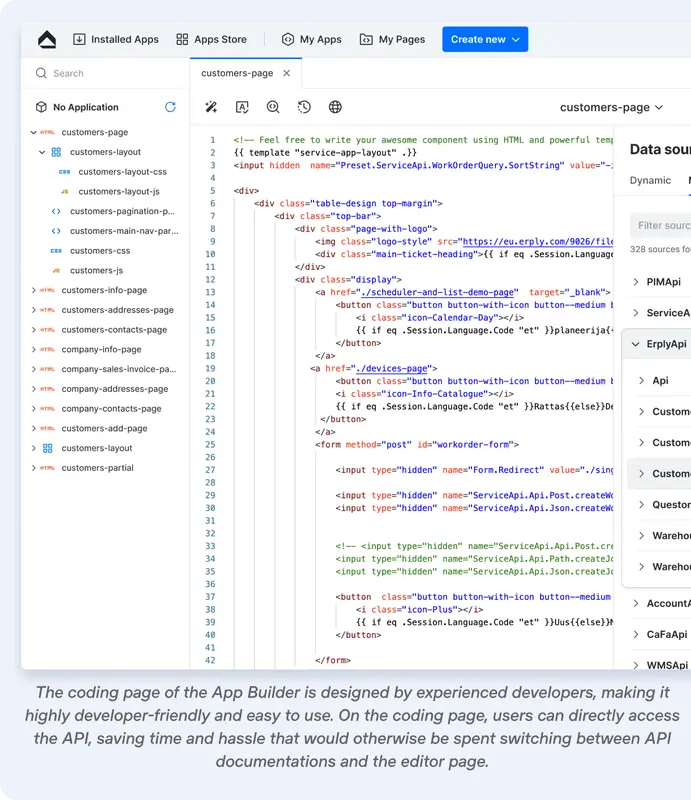
App Maker is a powerful low-code and API integration tool within ERPLY, simplifying app development and enabling quick customization while Automat manages security, updates, and maintenance.
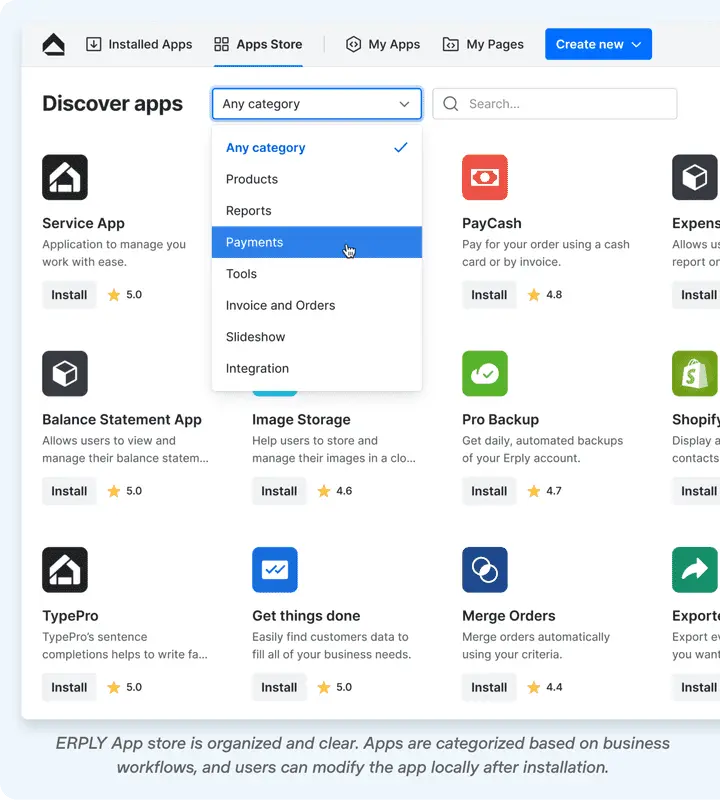
Discover business apps tailored by ERPLY’s developers, trusted partners, or your team. Install, customize, and reuse code to fit your needs, fostering collaboration and delivering the perfect business solution.
App Maker lets businesses customize app design, integrate with external systems, and automate workflows. Role-based access and scalability streamline processes and boost productivity.
App Maker is more than a platform—it’s a catalyst for business process evolution. Explore how Automat App Maker can elevate your business, simplifying today’s complex challenges with ease and efficiency.
We provide datacenters in the US, Canada, EU, Australia, and Africa, so your data never has to cross borders.


